
Browse the documentation
Home
Applications
Documentation
Join a Game
To take part in the game, you need to connect to the session created by the Host on your local network. No Apple Music account or internet connection is required.
Connecting to a session
Make sure you are connected to the same Wi-Fi network as the Host (or within Bluetooth range).
- Open Play Guess and Reveal.
- On the home screen, tap the big Join button — your device is your buzzer.
- As long as no game is found, the screen keeps looking around you and reminds you of the two things to check: Wi-Fi and Bluetooth on, on both devices, and local network access allowed — the Open button goes straight to Settings.
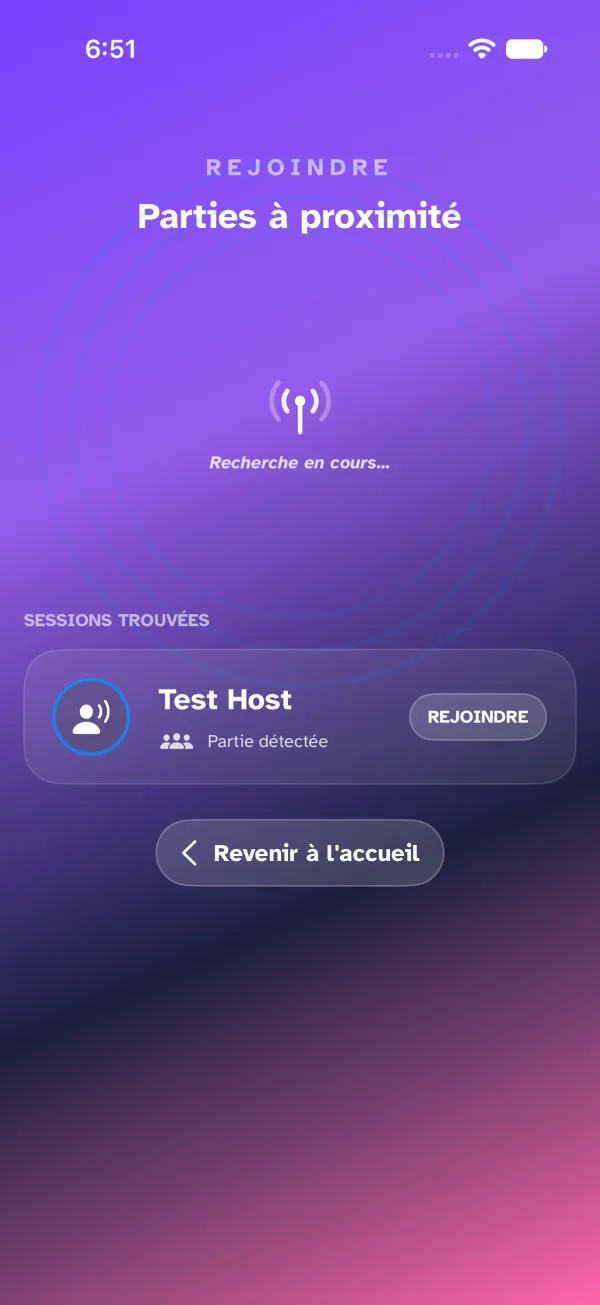
- As soon as a game is found, it shows as a card in its host's name: tap Join …'s game. If several hosts are around you, the others follow as rows.

-
The button turns into Connecting to … while the host answers — a few seconds, usually. If nothing comes, the app restarts the search and retries once on its own; if that is not enough, the card says so — Couldn't join …. Is the game open? — and the button becomes Retry. Check that the host has opened the waiting room and that both devices are on the same network.
-
You enter the Waiting Room.
The Waiting Room shows the players already there with their avatar (you highlighted) and the seats left, then the rules of the game as the host set them — target, fields to guess and their points, answering time, penalty — and your buzzer, which you can try by tapping it (the sound stays on your device) or change in the settings. The game starts when the host starts it; Leave the game is at the bottom.
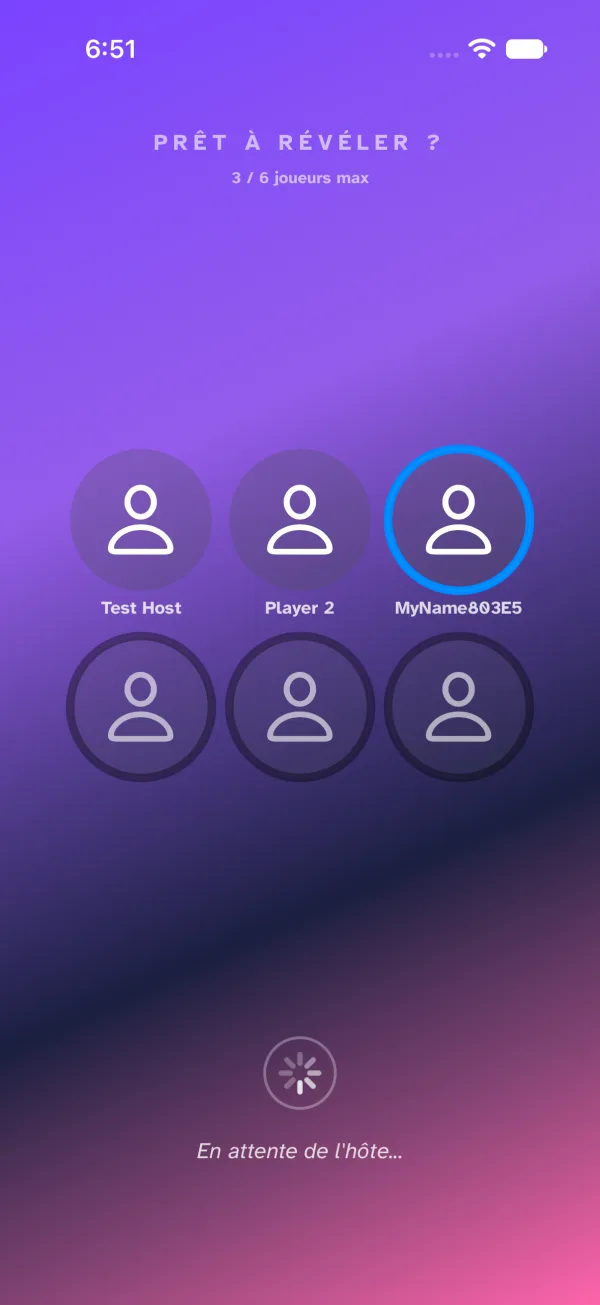
The rules show when the host runs version 1.0 (build 5) or later; with an earlier version, only the target and the fields to guess appear.
Customizing your profile
Before joining the game, or from the app's settings, you can customize your profile. It is visible to the Host and the other players on the connection radar and when scores are displayed.
Accessing the profile settings
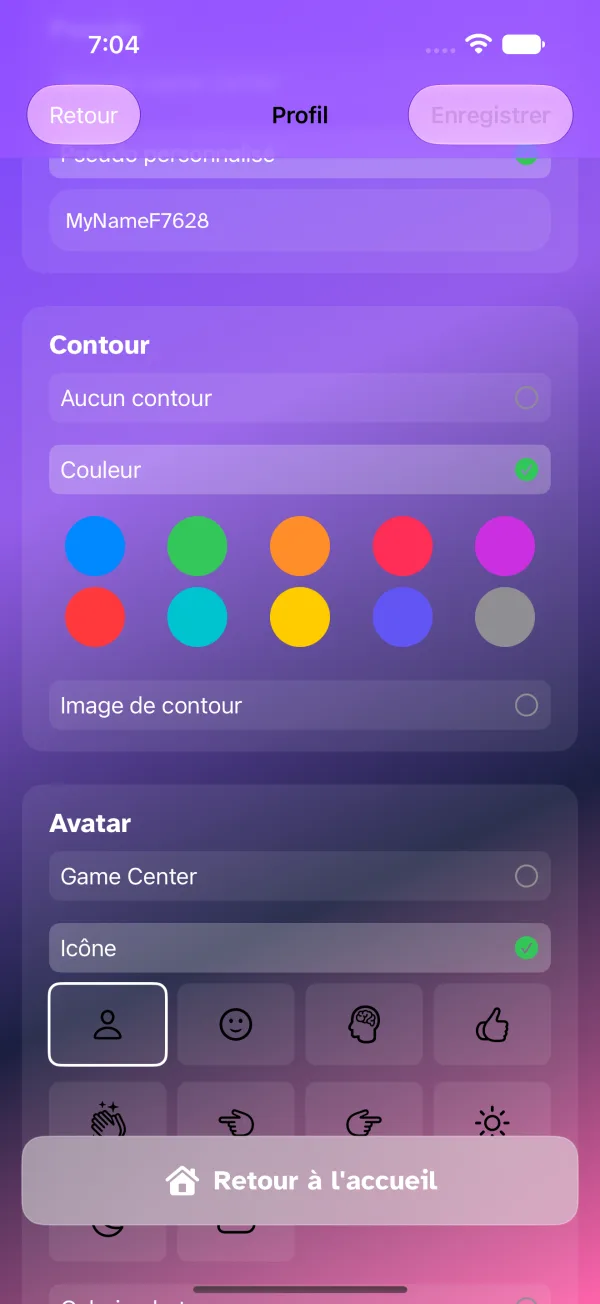
On the home screen, tap your avatar and nickname at the top ("Edit profile"). It all fits on one page: the preview of your avatar stays at the top while you set the rest, and Save waits at the bottom.
Changing your avatar
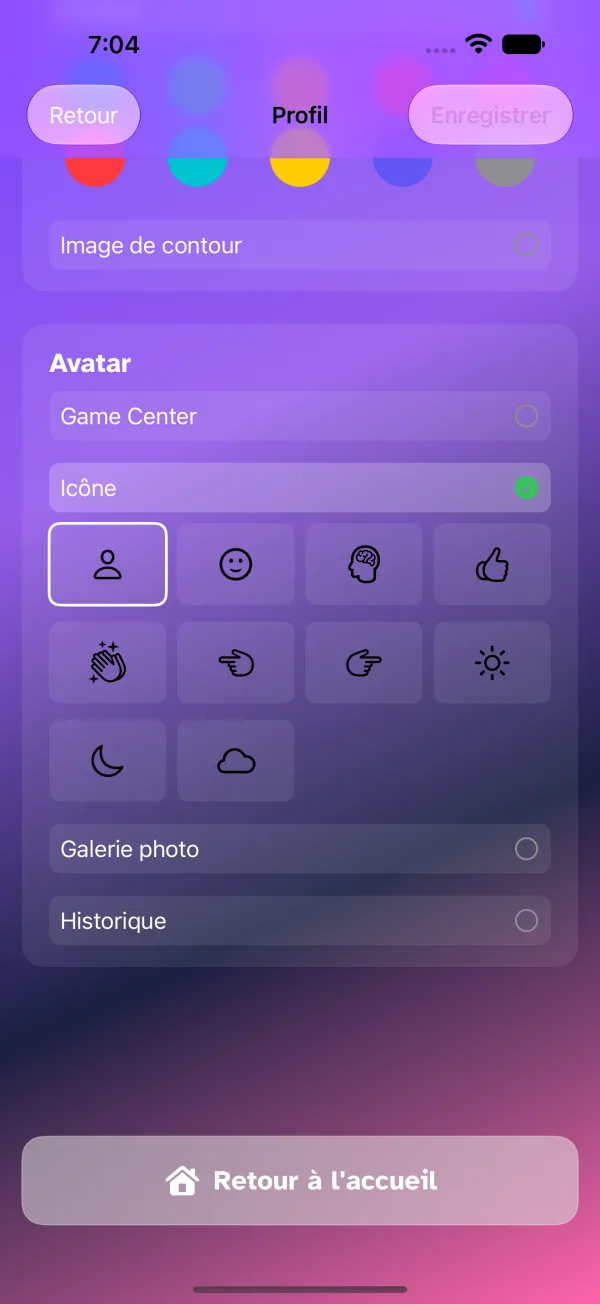
- In the Avatar card, choose where your image comes from: Game Center, an icon, your photo library, or an image you already used (History).
- Tap the icon or photo you want.
- Save, at the bottom.
Other customizable items
On the same page, you can also change:
- The avatar contour — a colored frame around your image.
- Your nickname — the name shown to the other participants. If another player picked the same one, the second to join appears with a number, "Léa (2)": each keeps their own score.