
Browse the documentation
Home
Applications
Documentation
Customizing your profile
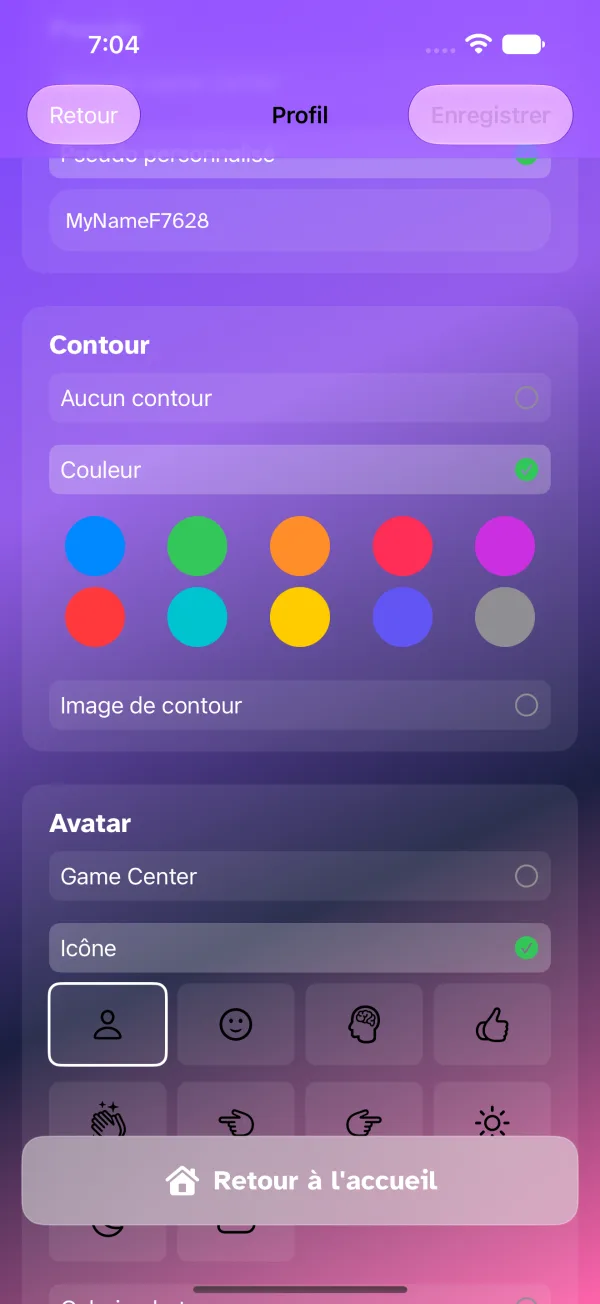
Your profile is what the host and the other players see of you: a nickname and an avatar. It is set on a single page, along with the buzzer and the sounds.
Opening the page
On the home screen, tap your avatar and nickname at the top ("Edit profile"). The gear on the right opens the same page, scrolled to the Buzzer style card.
Your avatar preview stays at the top while you make changes: every change shows at once. Under the preview, when the avatar is a picture, Adjust crop opens the zoom and framing.
Nickname
Type the name the others will see you under, or take your Game Center one if you are signed in.
Avatar
Choose where the picture comes from:
- Game Center — your Game Center photo;
- Icon — one of the symbols offered;
- Photo library — a photo from your device;
- Image Playground — an image generated on the device, when it supports it;
- History — an avatar you used before.
Outline
No outline, a colour from the palette, or an outline image (frame, crown…).
Buzzer style
Vinyl Record or Neon Pulse (a scrolling music sheet). It is the button you will tap during rounds; the waiting room lets you try it.
Countdown sound
Mobile, Harmonic, DJ or Arcade: the sound of the 3-2-1 before each round.
Saving
Tap Save, the white button at the bottom of the page — it stays glass until something changes. If you leave the page with unsaved changes, the app asks whether you want to stay or discard them.