
Browse the documentation
Home
Applications
Documentation
Player & Library
The Host has a full music player and access to their Apple Music library to control playback and manage the queue of tracks throughout the game.
The stage
During a round, the stage — at the top of the host's screen — shows what is playing and controls it.
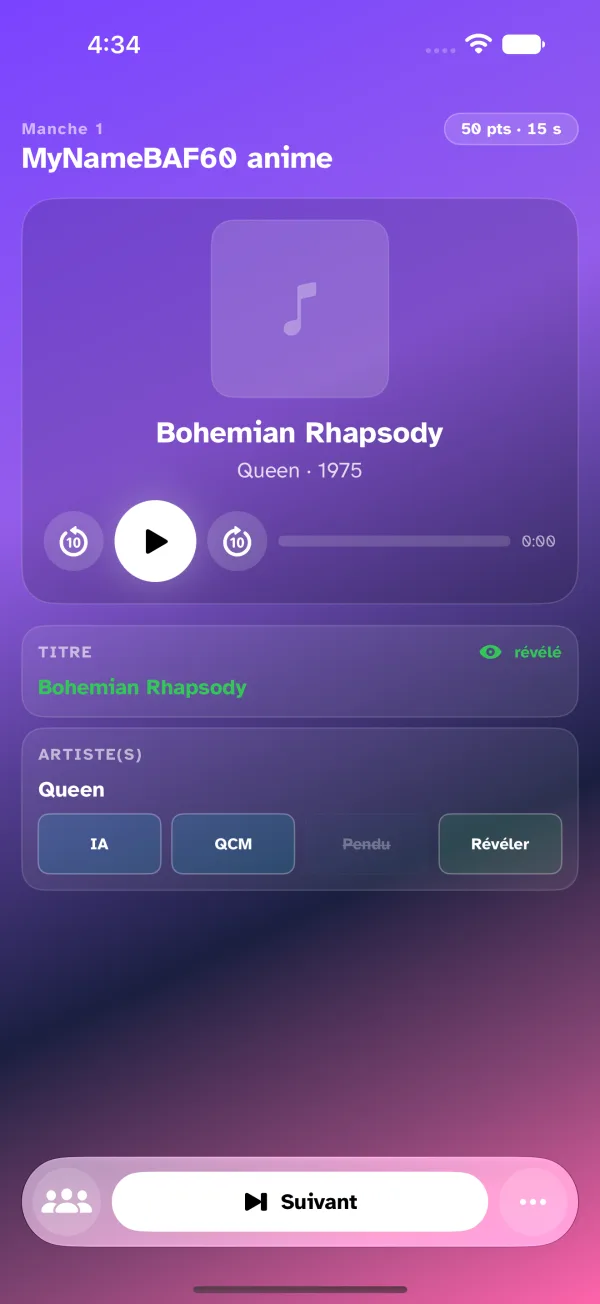
Track details
- The album cover (if available)
- The track title
- The artist and the release year
The album itself reads in the list of fields to guess, right below.
Playback and position
- The round button starts or pauses playback. On a keyboard: Space.
- On either side, −10 s and +10 s skip back or forward ten seconds — to hear a word again without starting over.
- The elapsed time appears to the right of the bar.
- Drag your finger (or the cursor) along the bar to move through the track; release to resume at the chosen point.
From the More menu
The More menu (⋯) in the bottom bar holds the less frequent commands: Restart Track, the playlist and the library.
The next round has its own button, Next, in the middle of the bottom bar (on a keyboard: Cmd + →). It opens the next track's card: cover, title, artist, Replace to pick another track; then the Start — Beginning, 15 s, 40 s, 1 min, Random, or your finger on the track's line for a precise moment; the last choice is kept for the next round. Start the round starts playback on your device and the countdown on the players'.
The playlist
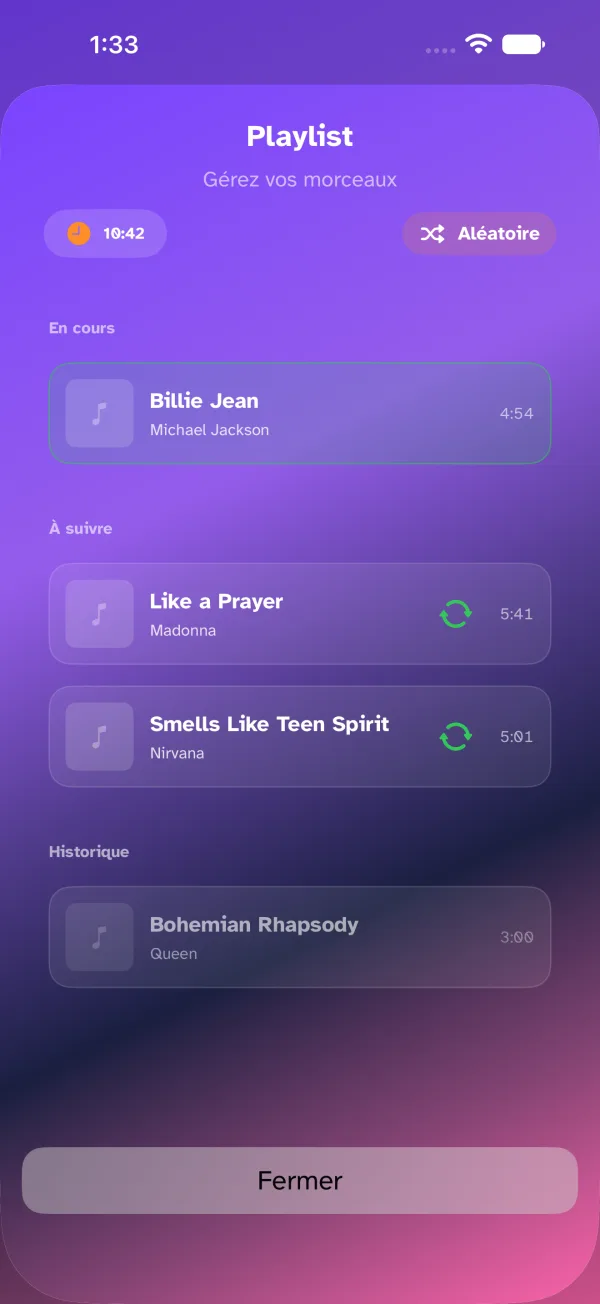
The playlist screen lets you view and manage the tracks of the current game.
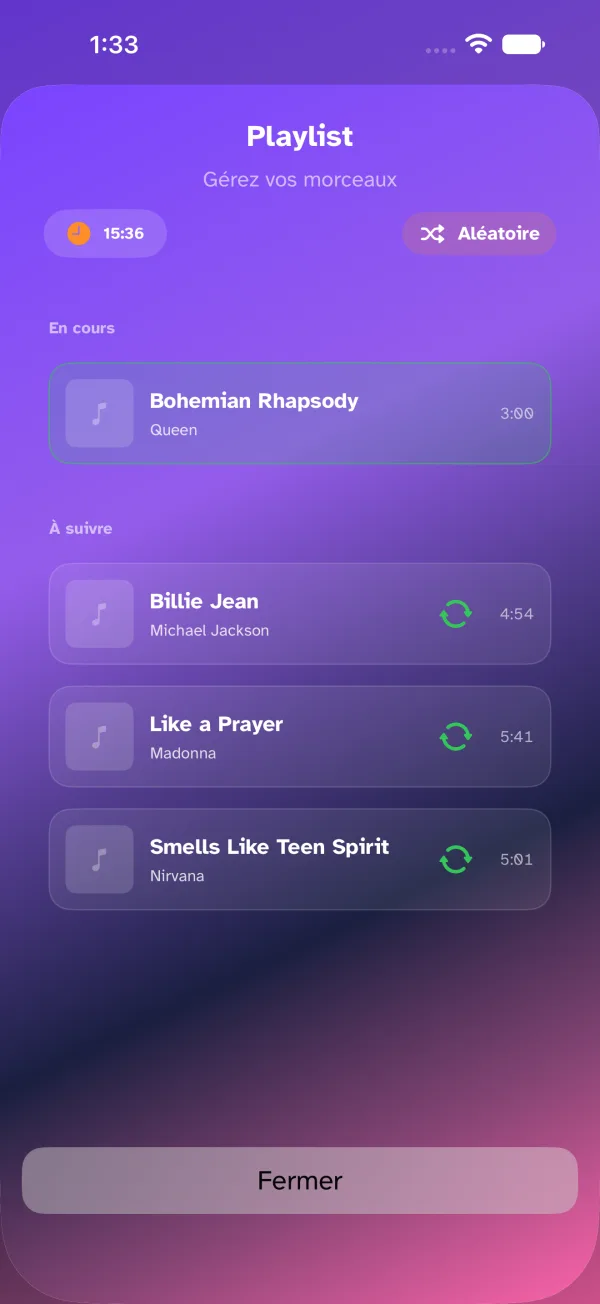
Screen structure
- Now Playing — the track currently playing, highlighted.
- Up Next — the queue of remaining tracks.
- History — the tracks already played in previous rounds.
Shuffling the queue
- Find the Shuffle button at the top of the "Up Next" section, next to the total duration.
- Tap it to randomly reorder all the remaining tracks.
Reordering manually
- In the "Up Next" section, hold the move icon of a track.
- Drag it up or down to reposition it.
Removing a track
- In the "Up Next" section, find the track to remove.
- Swipe the row to reveal the delete option.
- Confirm to permanently remove the track.
Replacing the current track
- In the "Up Next" section, find the track you want.
- Tap the replace button (icon with two circular arrows) next to that track.
- The current track is replaced and playback stops.
- Manually restart playback to start the new track.
The music library
The library gives you access to your Apple Music catalog to add tracks to the queue during the game.
Navigation
The library is organized into three sections:
- Playlists — your personal playlists.
- Albums — your album collection.
- Songs — all of your individual tracks.
Searching for a track, album or playlist
- Tap the search bar at the top of the screen.
- Enter the name of the track, artist or album.
- The results appear sorted by "Songs" and "Albums".
- To cancel, clear the text or tap the delete icon.
Adding a track from Playlists or Albums
- Browse the Playlists or Albums section.
- Select the item to display its details.
- Start playback of the selection from the detail view.
Adding an individual track
- Find the track in the Songs section or in the search results.
- Tap the + icon to the right of the track.
- Choose from the menu:
- Play Next — adds the track right after the track currently playing.
- Play Later — adds the track to the end of the queue.
On Apple TV: there is no menu. Play Next and Play Later are two buttons placed directly in the track's row; move the focus to them with the remote and select.